
Association columns show linked record names when they are available, such as a project linked to a contractor or a job linked to a customer. GridLane provides a separate available-records list in the side panel, with server-side search and paging for accounts that have many possible records.
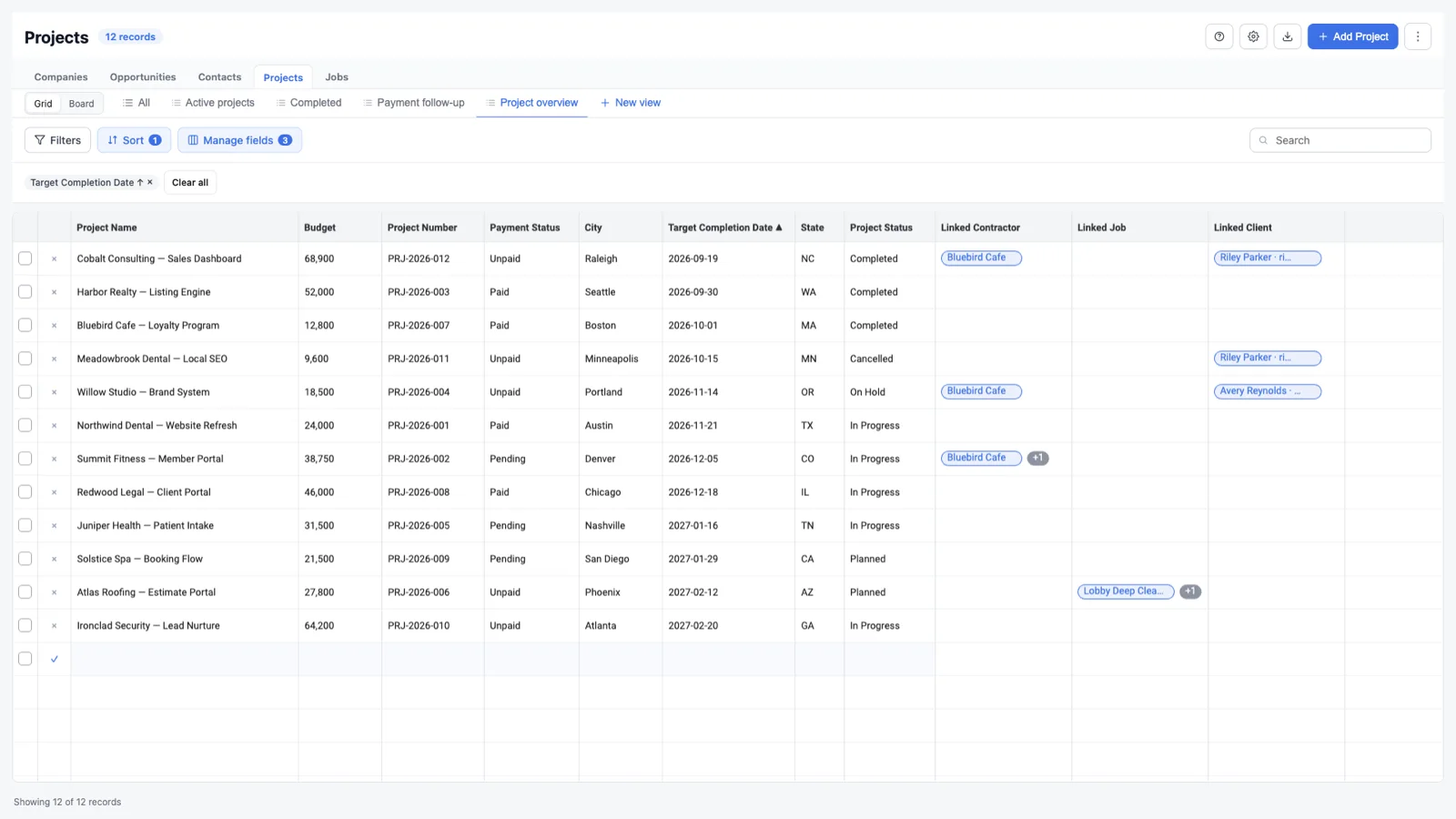
Open a linked record panel
Click a linked-record pill or an association cell. The side panel shows:
- The current record.
- The association type.
- Existing linked records.
- A search field for adding another linked record.
Add a link
- Open the association panel.
- Search for the record you want to link.
- Choose Link beside the result.
- Confirm the linked record appears in the panel.
If the association allows only a single link, adding a new record replaces the existing link after confirmation.
Remove a link
Find the linked record in the panel and choose Remove link. This removes the relationship between the two records; it does not delete either record.
Association definitions
The association itself—its key, labels, and the two object types it connects—must exist in HighLevel. Blueprints can create missing association definitions during a rollout. Individual record links are managed from the grid side panel.
GridLane’s add-only deployment never deletes existing record links.
Required access
Association definitions and relation links require the association scopes granted during installation. If linked columns are missing or read-only, check the app’s permissions and the current user’s GridLane access.