
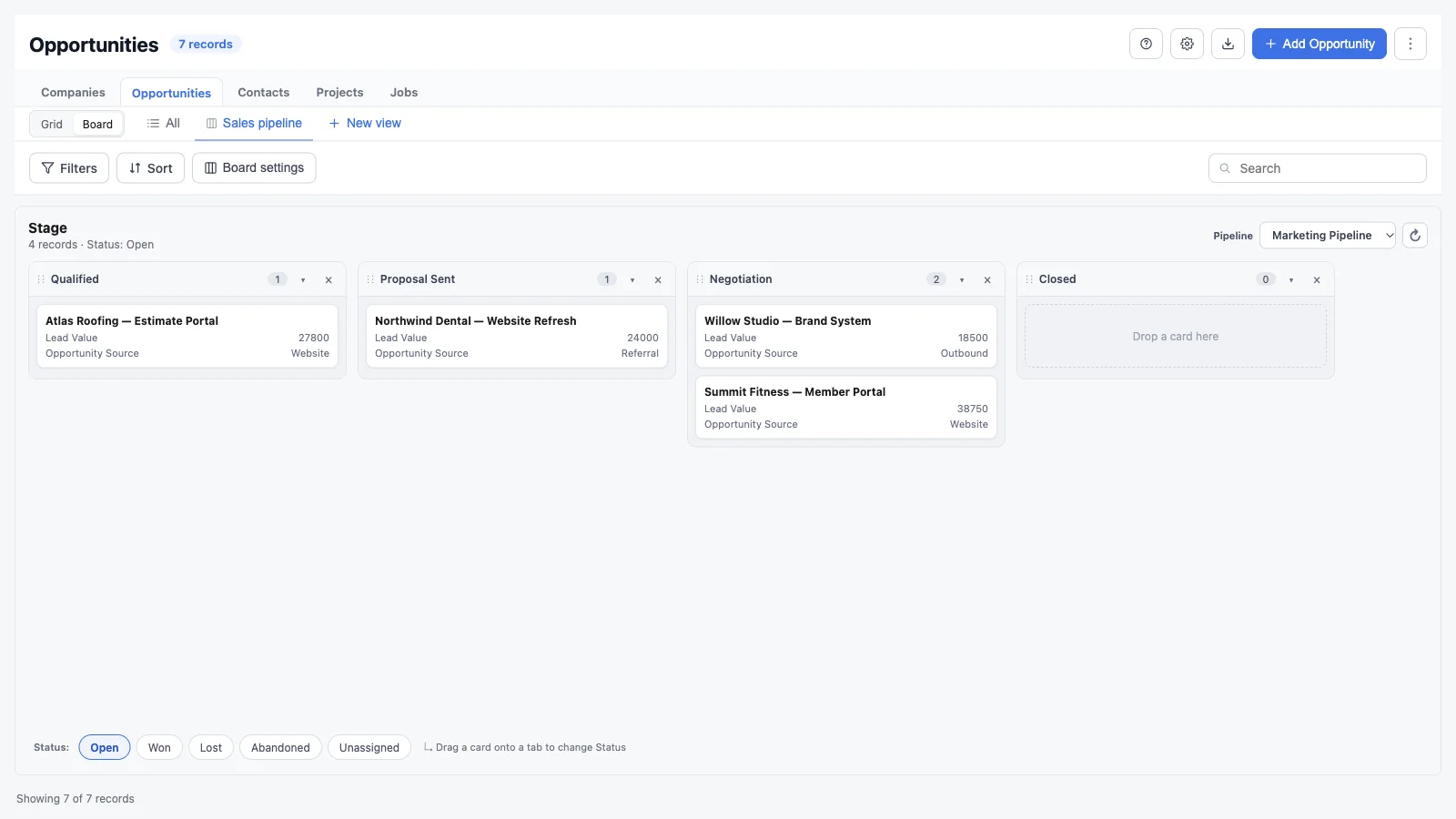
Kanban boards give the same records a visual workflow. Use a board when the team needs to see stage, status, owner, or another single-select field as columns and move work from one column to the next.
Grid and board views are separate. The Grid / Board switch above the view tabs changes the mode, and the saved views below it are filtered to that mode.
Before you open a board
A board needs a field whose values can become columns. GridLane supports:
- Single-select fields.
- Radio fields.
- Any single-select or radio field with at least one option.
For an opportunity, GridLane defaults to the active pipeline’s stages. The pipeline field is not used as a board column because a board shows one pipeline at a time.
If the Board switch is disabled, the object has no supported field. Add a single-select or radio field to the object, refresh the schema, and try again.
Switch between Grid and Board
- Open the object.
- Use the Grid / Board switch above the view tabs.
- In Board mode, choose an existing board view or All.
- Use Grid mode for spreadsheet editing and Board mode for stage or status work.
Switching modes does not convert the current saved view. Grid views stay in Grid, and board views stay in Board. If the target mode has a default saved view, GridLane opens it. Otherwise, the current filters and search are kept and you start an unsaved view in the new mode.
Configure a board
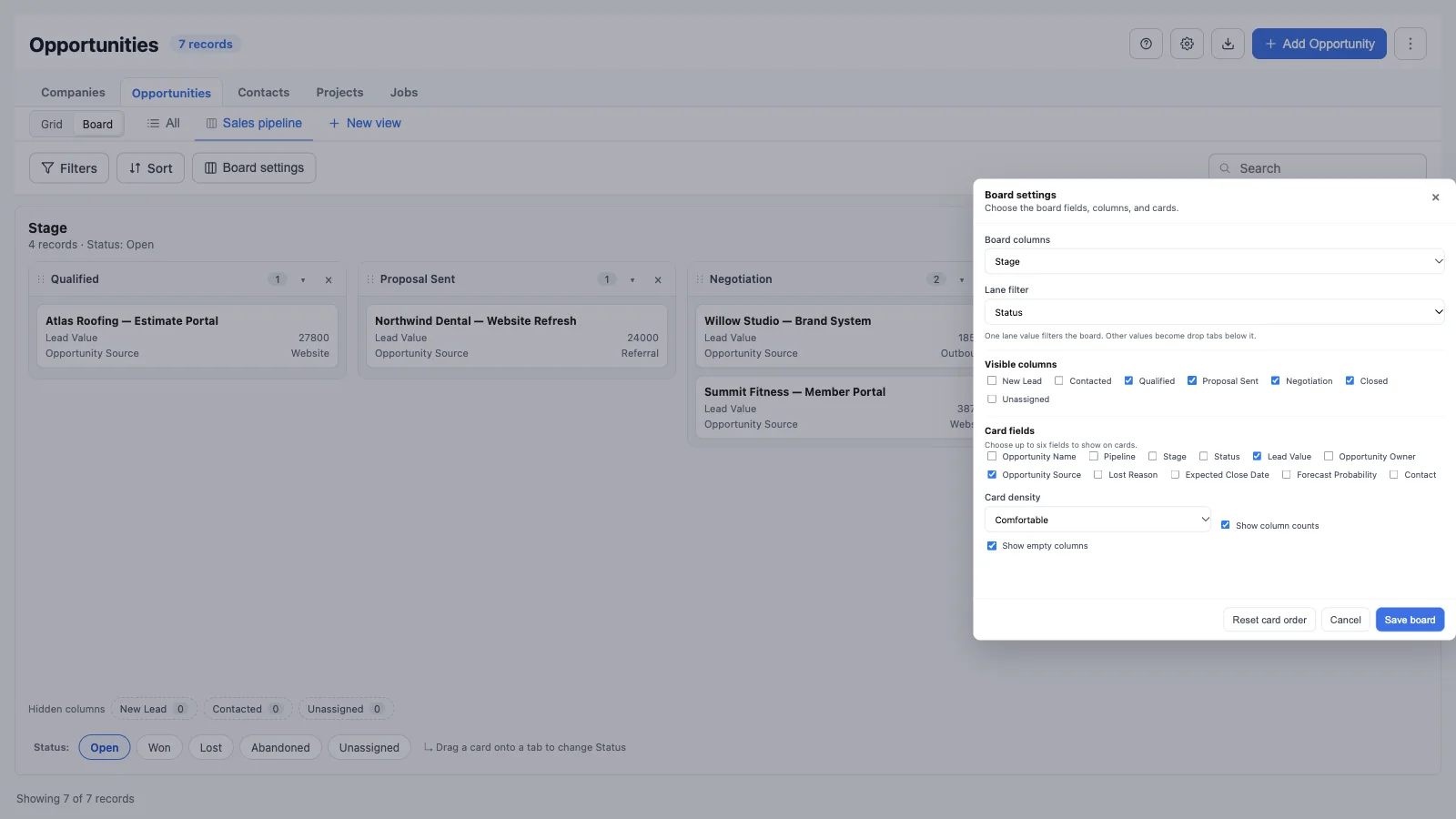
In Board mode, choose Board settings in the toolbar.
Board columns
Choose the field that becomes the columns. Common choices are:
- Pipeline stage for opportunities.
- Status for projects, jobs, contacts, or custom objects.
- Priority or another single-select field when the work should be grouped by urgency.
Columns appear in the field’s option order by default. Choose Show empty columns to keep stages visible even when they have no cards.
Lane filter
A lane field adds tabs below the board. Select a lane field to filter the board to one value at a time. Common lane fields include:
- Status.
- Owner or assigned user.
- Priority.
- Service type or category.
The tabs show the other lane values. Drag a card onto a tab to change that field without leaving the board.
Lane tabs and custom card fields are available on Pro and Enterprise. Core plans can still use standard board columns and cards.
Visible columns
Use Visible columns to hide stages or statuses that are not part of the team’s daily workflow. Hidden columns remain recoverable below the board.
You can also:
- Drag a column header to reorder columns.
- Drag the column edge to resize it.
- Collapse a column to save space.
- Use the hide control on a column header.
Card fields
Choose up to six fields to show on each card. Cards always show the record’s primary name. Additional fields can make a card useful without opening it.
Card options include:
- Card density: comfortable or compact.
- Show column counts: keeps the number of records visible in each column header.
- Show empty columns: keeps a stage visible before it has work.
Card fields are available on Pro and Enterprise.
Choose Save board to apply the settings. If the current board is a saved view, save the view afterward to keep the new layout for the team.
Move work on a board
- Drag a card between columns to change the column field.
- Drag a card onto a lane tab to change the lane field.
- Open a card to see record details without entering edit mode.
- Use Add [record] to create a record from the board.
- Use the column footer to load more cards when a column has more than the first page.
Manual card order is kept per lane and column. Drag cards within a column to set the order, or use Reset card order in Board settings to return to the normal sort.
Opportunity pipelines
Opportunity boards are pipeline-aware:
- Choose the pipeline selector above the board.
- GridLane shows that pipeline’s stages as columns.
- Stage options in the board and grid are filtered to the selected pipeline.
- The selected pipeline is saved with the board view.
Use Refresh pipelines when a pipeline or stage was just added in GoHighLevel and does not appear yet.
Save a board view
- Configure the board.
- Apply filters, search, and sorting if needed.
- Choose New view beside the view tabs.
- Name the view and choose whether it is shared or private.
- Save.
A board view stores:
- Board column field.
- Pipeline selection.
- Visible, hidden, collapsed, and ordered columns.
- Column widths.
- Lane field and active lane.
- Card fields, density, counts, and empty-column settings.
- Manual card order.
- Filters, search, and sorting.
- Grid layout preferences for when the user switches back to Grid.
The side panel is not part of the saved view. For grid-specific settings, see Views, filters, and saved views.
Permissions and plans
Board editing follows GridLane field permissions. If a field is read-only, the board will not let the user change it. A user who cannot view a field also cannot use it as a board column or card field.
- Core: boards, standard columns, standard cards.
- Pro and Enterprise: lane tabs and custom card fields.
Board behavior and limits
- Boards use the records loaded for the current object and filters. Use Load more in the grid or column footer to bring more rows into scope.
- A column shows a page of cards at a time; use Show more inside the column.
- Changes made by another user appear through the same near-real-time refresh used by the grid.
- A board may take a moment to reflect a newly added field or stage. Refresh the schema or pipelines if the new option is missing.
- Unassigned records appear in the Unassigned column.
Troubleshooting
The Board switch is disabled
Add a single-select or radio field with options to the object, then refresh the object schema. Contact fields and other text-only objects cannot become boards until a supported field exists.
A stage or status is missing
Open Board settings and check Visible columns. The column may be hidden. For opportunities, confirm the correct pipeline is selected in the pipeline selector.
A lane tab is available on a higher plan
Lane tabs and custom card fields are Pro and Enterprise features. Core accounts can still use the board itself.
A card change did not save
The field may be read-only under GridLane permissions, or the record may have changed in HighLevel. Open the card and review the field error before trying again.